| ADVERTISEMENT |
New translation memory technology in SDL Trados Studio 2017
SDL Trados Studio 2017 introduces the new upLIFT technology to take the power of translation memory to a new level. The transformative new upLIFT technology can translate new segments faster, even if you don't have a TM match. Studio 2017 will automatically find even more matches, so you don't have to! Register for a webinar: 10/14/16 -- 10/24/16. |
|
1. Your Tool Supports an Ever-Growing List of File Formats! Really?(Premium Content)
|
Here is something that has been on my mind -- or maybe I should say: has been bugging me -- for a long time: Part of the product description of every translation environment tool is the list of supported file formats. And when I talk about a new or updated tool in the Tool Box Journal, that list is always mentioned as well.
But what does that really mean?
The most basic list of file formats that a translation environment tool supports includes MS Office documents, HTML, and XML. And typically the XML-based IDML export format that InDesign produces is part of that list as well. And then there are a multitude of other formats that the different tools either support or don't.
Let's look at one of these formats in particular, XML.
But before we do that, we'll first check out the support for a presumably simpler format, MS Word files. Here are the import options of memoQ:
What's interesting here is that it allows you to exclude or include hidden text (a great way of marking up a document before processing it to protect some text from translation), import index markers, add a cascading filter (so you can also automatically process embedded Excel or PowerPoint files), run the file through a "clean-up routine" that gets rid of unnecessary background coding which might turn into nasty tags in the document, and so on and so forth.
Tools like Trados Studio, Star Transit, Memsource, and Déjà Vu have different but similarly comprehensive ways of making tweaks to the way MS Word files are processed. Other tools have virtually (or literally) no options to modify their behavior at all. Now, in the case of Word files, this can create nuisances because index markers have to be processed manually or there are way too many tags in a file, but overall, most available translation environment tools are still usable when it comes to processing these files. Some might have a hard time with very, very large files or with files with a lot of graphics, but most of them will do fine.
But let's now take a look at XML. Some of you will only very rarely or maybe even never have to directly (and knowingly) work in XML files, but others have to spend quite a bit of time trying to juggle this format. (And everyone does -- knowingly or not -- actually work in XML, as this has become the underlying format for essentially everything, including MS Office 2007+.)
Generally speaking, XML is a very simple format -- one of the reasons why it's used so widely -- but it's highly customizable -- again, one of the reasons it's used so widely.
Let's take this XML snippet:
<duration>
<durValue>10</durValue>
<durUnit>minutes</durUnit>
</duration>
Pretty clear what needs to be translated. Or is it? Obviously the element or tag names (duration, durValue and durUnit) should not be translated, but what about the "10"? It might depend on the language, but in all likelihood, we would do just as fine translating only "minutes."
So the first ability that a good XML file filter should have is to select which text between the tags should be translated and which not.
Let's look at a little more complex example:
<learningObject>
<learningOverviewRef href="mmcpLearningOverview_Describing_the_Business_Intelligence_Platform.dita" locktitle="yes" navtitle="Describing the Business Intelligence Platform" type="mmcpLearningOverview"/>
</learningObject>
In this case, there is nothing outside the tags or elements that needs to be translated, but there is one attribute (whatever precedes the equal sign) that needs to be translated (navtitle) and other attributes that don't (href, locktitle, type). It's pretty straightforward to recognize this when you look at it, but your tool has no clue -- unless you can modify the XML filter so that it "knows" what's translatable and what not.
I could continue with a number of other examples. I could show you XML data with (encoded!) HTML code, the so-called and notorious CDATA sections that can be contained in XML files and have to be translated or not. And so on and so forth.
Why do I do this? Because there are a number of translation environment tools out there that claim to support the XML format when in all reality they don't really, at least not in the way we need them to. They are all able to extract (all) the text between tags, but that's it for many of them. And that's typically not enough.
So I wrote to all browser-based tool providers this past week and asked them to clarify what kind of support they offer.
The result? Neither Lilt, MateCat, nor SmartCAT offer any support for modifiable XML filters (for all of them it's a planned feature, and for Lilt and MateCat specifically it should come relatively soon because they both rely on the open-source Okapi framework, for which MateCat presently finances a customizable XML filter).
XTM and Wordbee do support customizable XML filters, but for both of them you need significant expertise. For Wordbee you need to be familiar with XPath ("XML Path Language"), and for XTM you need to know how to handle ITS ("International Tag Set") -- although Andrzej Zydroń from XTM assured me that "for non-technical users our support department offers a free service of preparing ITS rules."
Memsource, on the other hand, presents a dialog that gives the user access to most everything that should be customizable in an easy-to-use and (relatively) self-explanatory interface that does not require any kind of difficult coding:
What this image does not show is that where it says "Plain" under "Format of import rules," it also allows you to select "XPath" (the aforementioned XML Path language), which provides access to the most sophisticated queries to modify your XML filter.
Let's see how some desktop-based translation environment tools deal with this issue:
SDL Trados Studio uses the same principle as Memsource. Here you can also select between entering complex queries with XPath or, alternatively, by simply entering the element and attribute to extract the text of the attribute for translation:
Other desktop-based tools like memoQ and Déjà Vu follow an easier, visual approach that allows you to import the XML file(s) in question and then select which attributes in which elements (tags) should be translated by showing you examples of the strings in question (as shown below in Déjà Vu):
Additionally, memoQ allows you to also enter XPath commands to deal with more hairy issues (although it's frustratingly difficult to access memoQ's "XML import rules" where the XPath queries can be composed).
To me, memoQ's solution seems to be the best way of dealing with XML files. The majority of translators don't know how or don't feel comfortable with using a text editor like Notepad++ for pre-inspecting XML files to make decisions on what needs to be imported and what not. For those, a visual solution like that of memoQ or Déjà Vu is ideal. And preferably, there should be an additional, more sophisticated interface for the really complex tasks (where you might be able to charge your client for the technical guru that you hire to write some XPath rules for you), a combination that only memoQ offers.
But, to come back to the very beginning of what we talked about. If a technology developer or vendor says "I support <xyz> format," all that means is that you can import files of that format. Whether you actually get to the content that you need to translate with that particular tool is a completely different matter, partially depending on your expertise (or the time required to develop that expertise) and partially on the facilities the tool offers (or lacks).
This in turn means that you really need to do some smart testing if you know what kind of files you typically work in -- and that's not only true for the more complex XML files.
|
| ADVERTISEMENT |
Even small translation teams can think BIG
No matter if you are an LSP or a team of translators: be productive from day #1 with memoQ cloud server.
Sign up to start your free trial now: www.memoq.com/memoq-cloud-server.
|
|
2. Xbench: A Tool for Terminology Management and Translation QA (Guest Column by Riccardo Schiaffino)
|
[I have written about Xbench a number of times before, typically praising the versatility of the tool and the responsiveness of its developers. In the last few months the pace of Xbench's development seems to have increased even more with the release of a large number of plugins and workflows for desktop-based and browser-based tools. So I asked English-into-Italian translator Riccardo Schiaffino, who has given many talks and presentations on Xbench, to give you an update on what's happening with the tool.]
Introduction Xbench is an excellent tool for terminology management, glossary and translation memory concordance searches, and translation QA. This program comes in two versions: freeware (Xbench 2.9) and paid (Xbench 3.0). If you only intend to use the program for terminology management and search, the free version of the program is probably enough; depending on the CAT tool you use, the free version also is useful for getting you started in translation QA. If you try it and find it useful for QA, though, the added functionality and file types support offered by the paid version increase the value of the program. Terminology Management and Concordance Searches When I first started using Xbench, it was for terminology management and for translation memory concordance search. At that time, the CAT tool I used the most was Trados 2007, which allowed concordance searches only in the source language. At times, though, I wanted to search in the target, but, since there was no way of doing that in Trados, I got in the habit of using Xbench: I could load in it one or more exported Trados translation memories, and I could then use Xbench to do a reverse concordance look up -- a useful function that SDL finally introduced with Studio. After I begun using Xbench and I saw how useful it was, I started using it more and more: at first only for searching terminology (glossaries and translation memories), but after a short while also for translation QA. With Xbench, you use the same search program and leverage the same glossaries and resources no matter what CAT tool you use for writing your translation. If you, like me, work with several CAT tools, it is good to know that you can always rely on your favorite glossaries and resources, regardless of the translation environment you are using for a specific project. Also, the glossaries you load in Xbench can be as simple as a tab-delimited text file: no need to struggle with the intricacies of SDL MultiTerm. Translation QA Nowadays the QA features of the most powerful CAT tools (such as SDL Trados Studio or memoQ) are extensive. So, if your CAT tool already offers internal QA features, why use an external program like Xbench? For me, the answer is that I regularly have to use more than one CAT tool: mostly SDL Trados Studio, but increasingly also memoQ, Memsource, and sometimes other programs as well. Just like for terminology management, one of the reasons I rely on Xbench as a QA tool instead of using the internal QA features of my CAT tools is that with Xbench I can use a single program, with the same resources and key terminology glossaries, and the same QA tests. If I spend hours devising and refining a special regex (regular expression) search to test for certain possible translation problems, I want to be able to use it regardless of what CAT tool I use to translate any specific project. Xbench offers a rich set of QA tests: a spelling checker that allows you to flag all suspect misspellings at the same time, instead of one at a time throughout the text, and various consistency tests -- for example, to see if sentences that have the same text have been translated differently, or, conversely, if sentences that are different in the source text all have the same translation. Xbench also helps with numeric consistency, with making sure that "camelCase" words are the same in source and target (useful when translating software), checks for the correct application of required terminology, and allows for additional QA tests based on your personal and project checklists (more about that later).
|
|
| Some of Xbench's QA checks |
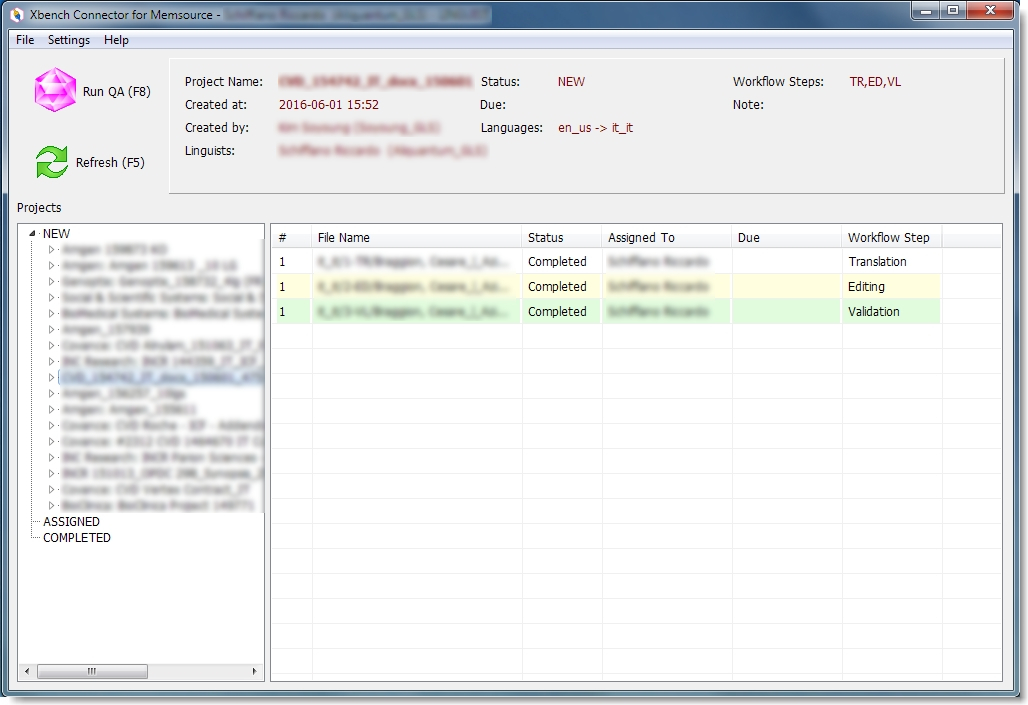
Supported File Types Xbench supports many different bilingual file types, for glossaries (for example, tab-delimited text files), for translation memories (TMX and several proprietary CAT tool formats, including Studio memories), and CAT tool bilingual files (from all the major CAT tools, such as Trados Studio and memoQ). The files loaded in Xbench can be used in various ways: as reference files (doing searches in memories, glossaries and bilingual tools), as "key terminology" glossaries (that is, glossaries that are used during QA to check that the terminology is correct), and as "ongoing translation" (files on which QA is performed to find inconsistencies and other issues). The bilingual file types supported by Xbench include those from some old programs, such as "classic" Trados, SDLX, TagEditor and even IBM TM2, and all the major CAT tools currently in use, including SDL Trados Studio, memoQ, Star Transit, Wordfast, Déjà Vu, Transifex, Google Translator Toolkit, MateCat and Memsource. You can even use Xbench with CAT tools that are not officially supported and that, in fact, do not use bilingual files the way other CAT tools do. With a bit of ingenuity, you can even use Xbench to check the translations you do in OmegaT. Xbench Plug-Ins and Integrations Xbench offers plug-ins or extensions for several programs. SDL Trados Studio For SDL Trados Studio there is an add-in that can be downloaded either from the SDL app store or from Xbench.net. Once you install the add-in, you can launch the Run QA in Currecnt Project command from the Home ribbon bar within Trados Studio. memoQ Unlike Trados Studio, memoQ doesn't expose an API (application programming interface) to create add-ins, so ApSIC, the Spanish software and translation company that develops Xbench, went a different way to make easy the use of Xbench with memoQ files: it uses "segment positioning" that allows you to perform a translation QA in Xbench on an exported file from memoQ and easily jump back to the segment in the actual open project within memoQ. You can find a video on this procedure right here. Memsource Memsource is a popular cloud CAT tool, and Xbench supports it with its own add-in, the Xbench Connector for Memsource. The Xbench Connector creates a connection between Xbench and the Memsource Editor (the optional desktop that Memsource projects can be translated in). This is unfortunately only possible with API access, which in turn is only available in Memsource's Ultimate editions and is therefore typically out of reach for translators.
|
|
| Xbench Connector for Memsource |
Transifex, Google Translator Toolkit, and Matecat To perform QA in Xbench on several cloud CAT tools, such as Transifex, Google Translator Toolkit, or MateCat, ApSIC has developed an add-in for Google Chrome. With the installed plugin you can start the Xbench QA process within an open project of any of these tools. Once an error is detected in Xbench, you can easily jump back to the corresponding segment in the open project and make the necessary correction.
|
|
| Google Chrome extensions for Xbench |
Using Xbench to Create and Export TMX Files Another useful feature offered by Xbench is that it can export to a single TMX file all the bilingual resources included in an Xbench project. So, if you have a mix of various bilingual files, you can use Xbench to create out of them a single exported translation memory, which can then be imported in any CAT tool. Extending Xbench Xbench already offers many different QA tests. But what if the test you need to perform is not among those featured by the program? The answer is that you can extend Xbench's QA and search features through project and personal checklists. Checklists can be as simple as simple searches, and as complicated as complex regex expressions. By using such searches and record them in checklists, you can add to Xbench the ability to search for inconsistencies in punctuation, more flexible key term lists, lists of words not to be used in your translations, and more.
|
|
| Extending Xbench with personal checklists |
Conclusion and Links I find Xbench extremely useful, and I use it with all the translation projects I do. You can download the program from Xbench.net. For a full review of the various features offered by Xbench, see my presentation "Xbench for Terminology Management and Translation QA" on my blog About Translation. See also ApSIC's support on Xbench.net, and the Xbench Community Forum for more information on the program. |
| ADVERTISEMENT |
Leave the office 20 minutes earlier today!
Using MindReader for Outlook, you can write e-mails more quickly and more consistently. Watch the short video for more information on MindReader for Outlook functionality and usage:
https://www.youtube.com/watch?v=YAPLHSvVrBc. |
|
3. Tags Be Gone!
|
| Earlier this week, MateCat announced an interesting feature: It has eliminated the manual placing of tags or inline codes in translation segments in the following language combinations: English <> German, Spanish, French, Italian, Portuguese, Russian; Italian <>French, German, Spanish; and German <> French. Instead of showing the tags in the source and target segments, a "Guess Tags" button is displayed which both enters the source tags and guesses the placement of the target tags. If the target tags are not correctly placed, you can correct them manually. The reason they often will be displayed correctly is because of the underlying word alignment that MateCat performs on those language combinations. It's an exciting feature that can eliminate a lot of headaches for many translators. But if you feel you've read about something like this before somewhere, you're right. It was likely right here when I reported for the first time on Lilt. I sent Spence Green from Lilt the MateCat announcement when it was first released, and this is what he said: "Yes, this is a pretty obvious feature (when word alignments are available), and it's not terribly hard to implement. It's strange that it was not implemented years ago in the other tools." I venture a guess that other tools will follow suit now. It might be more work for some than for others to apply word alignments, but it's just too good a feature to pass on. And really, this is why I love watching technology develop and writing about it. Between the different developers it's like an organic entity that makes all of them better once someone comes up with something clever. |
| ADVERTISEMENT |
| 50% discount on crossMarket premium subscriptions Do not miss the opportunity to get the crossMarket premium membership for half the price until October 25, 2016. Of course, the bundle also includes the premium version of the Across Translator Edition. Using the full function scope you can make use of your sales potential as effectively as possible. For prices and a list of all premium features, visit www.crossmarket.net |
| 4. Wordsworthian |
| Yes, "wordsworthian" typically relates to the Romantic poet William Wordsworth ("What pensive beauty autumn shows..."), but I think it's an excellent word for worthy tricks in (MS) Word. Here are some (I've mentioned some of these before -- but since I realized that I myself had forgotten several, I can only cling to the hope that you are as forgetful as I am). If you want to repeat the last command within Word, pressing F4 (LibreOffice/OpenOffice: Ctrl+Shift+Y) repeats the last command. That can be formatting-related or a more complex command, like running a macro or entering a field. If you want to go back to the last location where you changed something in the document, press Shift+F5 (as far as I can tell, there is no equivalent in LibreOffice/OpenOffice). This is obviously helpful when proofreading a document. We'll talk about copying and pasting further down below, but there is also a "different kind" of copy & paste in MS Word that most people are not aware of. It's called "Spike" and is named after the old-fashioned and painful-injury-causing paper holder that resembled a long nail sticking up and onto which papers were impaled. Unlike the traditional copy & paste, Spike does not use the clipboard, so it doesn't overwrite any potentially valued content you might have sitting there. To use it, select some content (text, graphics, etc.) within a Word document, press Ctrl+F3, put the cursor in the document where you want to move the content, and press Ctrl+Shift+F3. This results in the old instance being deleted and transferred to the new location. Once you do that, your spiked content is not available anymore (so you can't place it elsewhere as well). If you want to place it in more than one place, you'll need to type spike in the desired new location in the Word document and press F3. That'll position the Spike content without you "losing" it for further use. (Yes, you're right, this last one sounds like the ultra-nerdy shortcut -- feel free to forget it right away, unless, however, you want to impress your otherwise-so-much-more-tech-savvy-than-you kids or other relatives.) If you just want to copy the old fashion way, you can of course use Ctrl+C and Ctrl+V, but sometimes it's a lot easier (and works in virtually any program, not just in Word) to select something and then press the Ctrl key as you drag it. This procedure can be especially helpful when you work in a bilingual translation environment and you need to copy non-translatable items (e.g., product names or codes) from source to target. In Word you can also do the same dragging process and hold the Ctrl+Shift combination. This will not only copy the item but make it a link to the original location (so that you can click on the link to jump to that place). This is also potentially helpful when proofreading a document and marking places that you need to revisit (just don't forget to delete the links before sending the document back to the client). If you want to copy and paste just the formatting of something in your document, you can do that by using the "Format Painter" in your toolbar or ribbon bar (which, by the way, when double-clicked, "remembers" the formatting for more than one paste action), or you can press Ctrl+Shift+C to copy and Ctrl+Shift+V to paste. Ctrl+Alt+V is also a helpful keyboard shortcut to paste something: It opens a dialog that gives you access to paste content in various formats, including unformatted text, which sometimes can be very helpful when pasting text from other sources, such as webpages or PDF files. And lastly, since we are talking about unformatted text, one of the most helpful shortcuts in Word has to be Ctrl+Spacebar. This gets rid of all formatting. |
| ADVERTISEMENT |
| MateCat killed the tags We already had the cleanest interface. Now we also got rid of tags.
MateCat uses Machine Learning techniques to handle the tags automatically. |
5. New Password for the Tool Box Archive
|
| As a subscriber to the Premium version of this journal you have access to an archive of Premium journals going back to 2007. You can access the archive right here. This month the user name is toolbox and the password is LowerAustria. New user names and passwords will be announced in future journals. |
| The Last Word on the Tool Box Journal |
| If you would like to promote this journal by placing a link on your website, I will in turn mention your website in a future edition of the Tool Box Journal. Just paste the code you find here into the HTML code of your webpage, and the little icon that is displayed on that page with a link to my website will be displayed. If you are subscribed to this journal with more than one email address, it would be great if you could unsubscribe redundant addresses through the links Constant Contact offers below. Should you be interested in reprinting one of the articles in this journal for promotional purposes, please contact me for information about pricing. © 2016 International Writers' Group |
|