Make Phone Calls Clearer with Voice Isolation on iPhone

Your phone calls on iPhone just got a lot clearer. Apple previously implemented Voice Isolation and Wide Spectrum for FaceTime. Now, they have made Voice Isolation available for phone calls as well. Wide Spectrum is also available on FaceTime audio calls. Here’s everything you need to know about Voice Isolation on iPhone.


What Is Voice Isolation?


Voice Isolation is a feature that filters out background sounds, making your voice clearer and easier to hear. This is especially useful if you’re out in a crowded area or if you’re at home and your kids are watching TV while you’re trying to talk on the phone. I find it to be most handy when my apartment’s landscaping team decides to mow the grass while I’m on the phone with a friend. SeniorNet Editor's note - it also silences fan noise as well as the turn signal clicking from my car when on speaker phone or CarPlay.


Wide Spectrum, on the other hand, enhances background sounds. This is meant for when there are multiple people talking on a phone call, such as during a conference room meeting. This way, everyone’s voice comes through loud and clear. Note: Wide Spectrum is only available on FaceTime* (including FaceTime audio calls).


How to Enable Voice Isolation on iPhone


Now, to enable Voice Isolation, you first need to be on a phone call. Additionally, these features are only supported on the iPhone XS and newer.


  • While on a call (you must do this during a phone call), swipe down from the upper right edge of your display to open the Control Center (or swipe up from the bottom edge of the display if you are using an iPhone SE).
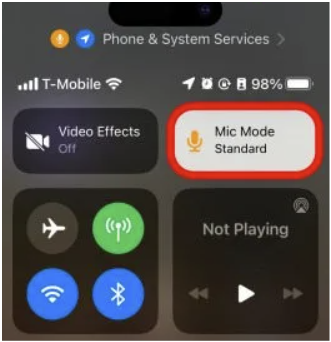
  • Tap Mic Mode to change your iPhone's microphone setting
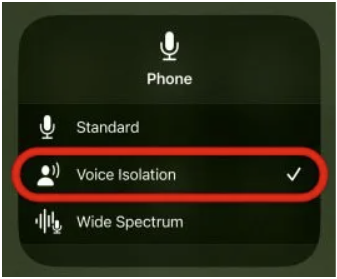
  • Tap Voice Isolation to turn the feature on.
  • *If you are on a FaceTime call, you can also select Wide spectrum.


Once you have enabled Voice Isolation or Wide Spectrum, the caller on the other end should be able to hear you loud and clear. You do not have to activate this each time as it remembers the last setting.


PS - Waiting on Android for this feature as it is still in beta.


Thanx to iPhone Life

Control Center showing "Mic Mode Standard" while on a phone call

Control Center after tapping "Mic Mode Standard" and choosing "Voice Isolation".


"Wide Spectrum" available when on FaceTime.

REGISTER FOR HUNTINGTON LAB CLASSES

FSL SeniorNet at Family Service League, Olsten Family Center

790 Park Avenue, Huntington, NY 11743 1-631-470-6757

PowerPoint Spotlight


PowerPoint is not just for business presentations. Think about slide shows for family parties, viewing memorable vacation pictures, as well as creating business cards and greeting cards. Join our class to learn more.

  • Microsoft PowerPoint: Quick Start (2) starts on Aug 3
  • iPhone (4) starts on Aug 8
  • Android Phone (4) starts on Aug 8
  • PC Computing Basics 1 (4) starts on Aug 9
  • Master the Google Cloud (3) on Aug 14
  • Facebook (3) starts on Aug 31
  • Smartphone Photography (4) starts on Sept 7

Private Instruction available at this location.

REGISTER FOR BAY SHORE ANNEX

FSL SeniorNet at Family Service League, South Shore Iovino Family Center

1444 Fifth Avenue, Bay Shore, NY 11706 1-631-647-3100

  • Google Docs & Sheets for Word & Excel Users (3) starts on July 25
  • iPhone: An Introduction (4) starts on Aug 8

Private Instruction available at this location.

FREE WEBINARS & SEMINARS

Webinars are held over Zoom,

Seminars are at local libraries.

  • Streaming Video Webinar on Jul 26
  • iPhone: The Camera Webinar on August 16
  • Android Phone: Getting Started Webinar on Sept 11
  • Windows 10: Survey of Settings & Desktop Webinar on Sept 13
  • Windows 11: An Introduction Webinar on Sep 20
PRIVATE INSTRUCTION INFORMATION
IMPORTANT STUFF TO KNOW!

COVID PRECAUTIONS FOR ALL IN-PERSON CLASSES REVISED:

MASKING IS NOW OPTIONAL.

PROOF OF COVID VACCINATION IS NO LONGER REQUIRED.

-------------------------------

ALL CLASSES:

Registration is open until 10 AM sharp one day before the start of a class.

To participate in our classes, register and pay online with a credit or debit card. If you prefer to pay by check or cash, contact the office at 631-470-6757, or register in person at Open House in Huntington, Bay Shore & Blue Point.


ONLINE CLASSES:

To participate in our online courses, you need to download Zoom on your computing device*. The Zoom link will be included in the confirmation sent by ezregister.com. The teacher will also send the Zoom link and manual before the class.


WEBINARS ARE ONLINE:

Registration is open until one hour prior to the webinar's start time.

The Zoom link will be included in the confirmation sent by ezregister.com. The teacher will also send the Zoom link and handout before the webinar.


SEMINARS ARE IN-PERSON & LIBRARY HOSTED:

Registration is managed by our host library. Their registration link will be provided on their website, our email blasts, and our webpage.


SOLD OUT:

Please call 631-470-6757 or send an email to fslseniornet@fsl-li.org

to receive an email with information as to when the course (webinar, seminar, class or workshop) is offered again.

Please include the name of the course you are interested in.


COMPUTING DEVICES:

*Computing devices include Windows and Mac Desktops & Laptops,

iPads, and Android Tablets.

It is NOT recommended to Zoom using your smartphone

due to the smaller screen size.


ZOOM HELP IS AVAILABLE:

 If you need instructions on downloading and using Zoom, click here:

HOW TO JOIN A ZOOM CHAT. 

REGISTRATION PROCESS
SeniorNet Community Programs
COMPUTER DONATION / REFURBISHMENT PROGRAM
TECH CONNECT LIBRARY
FSL SENIORNET WEBSITE
FAMILY SERVICE LEAGUE WEBSITE