SHARE:  

Welcome to ITS Powertivity eNews | May 2024 | Issue 15

Powertivity image banner

Level Up Your Meetings & Chats with Teams Tips!

Today's newsletter is 492 words... a 2-minute read.

Ready for your close up, but lighting too dark?

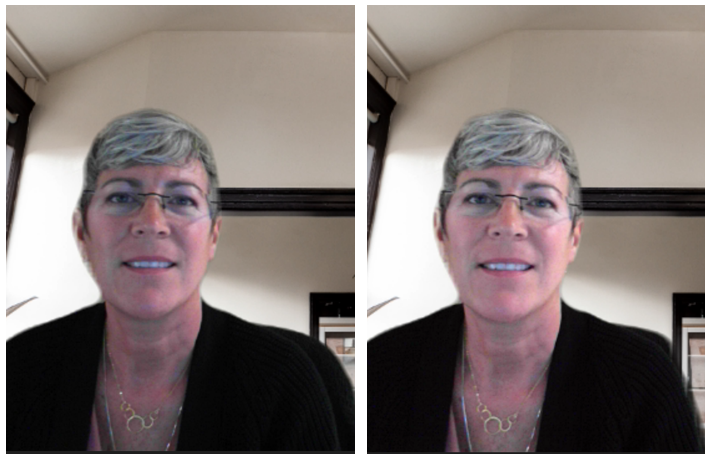
Before and after photo showing the "Adjust brightness" option in Microsoft Teams.

There's a setting for that!


1) In a Teams meeting, select the Camera drop-down.


2) Turn ON the Adjust brightness option.

MS Teams adjusts brightness to enhance the video quality when lighting is poor. Brilliant!


Note: Brightness quality may vary across Windows and OS systems.


Look Better on Video Calls with These Easy Lighting Tips YouTube video (4:04)


How to Be More Authentic and Creative on Video

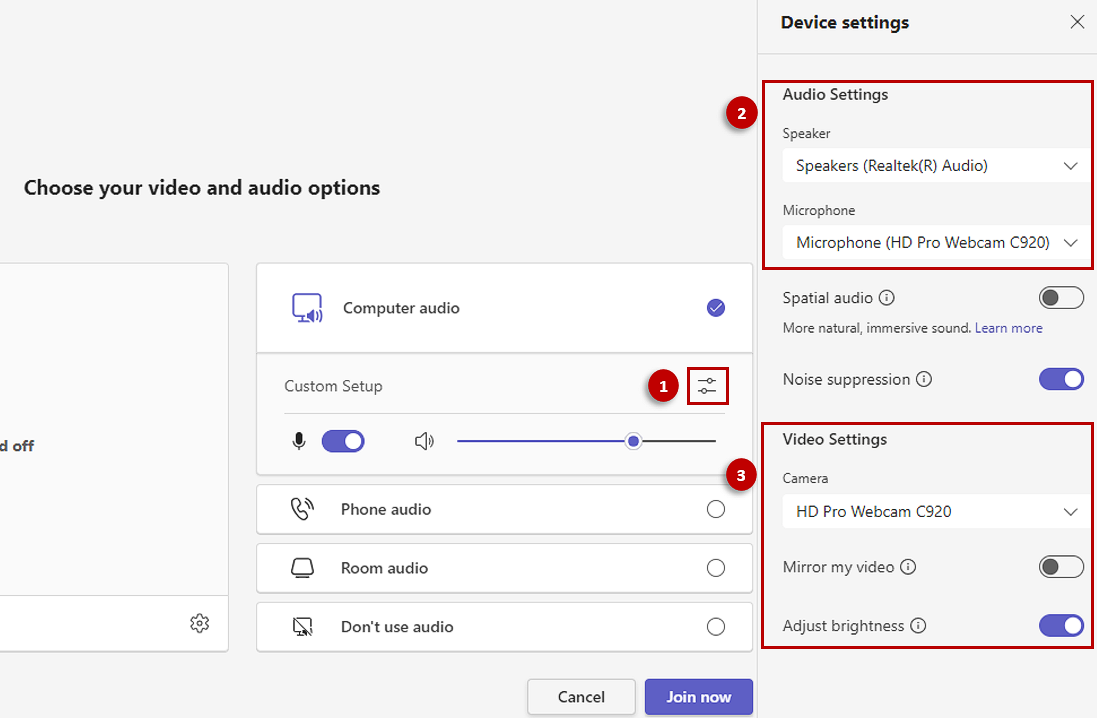
Did you know? You can check your audio/video settings BEFORE joining a Teams meeting. Yea, that screen you ignore when clicking Join now.


Perform a quick 'pre-join' check EVERY TIME:

1) Correct audio device

2) Camera On or OFF

3) Not sure which device is activated? Access the Device Settings toggle to dive deeper into audio/video options for the correct device (shown below).

Chevrons pointing down.

Already in a meeting and experiencing audio/visual issues? See below...

Valuable Functionality Reminders in 5 Mins or Less

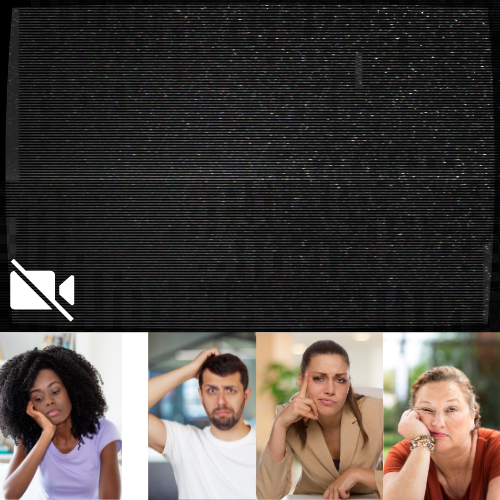
Black screen due to video not working as bored participants look on.

Stop boring the participants! Raise the energy by showing your face and letting your personality shine through for a more authentic meeting experience.

Video Not Working?


We're not talking about accidentally having the camera off. To check your video device settings:


1) Verify that your device video settings are correct by using the Camera drop-down.

2) Select More video effects and settings > Settings if you need to dive deeper into the issue.


Still not working? Try This >

(5 min read)

Audio Not Working?


We're not talking about accidentally staying muted. To check your audio device settings:


1) Verify that your device audio settings are correct by using the Mic drop-down.

2) Select More audio settings if you need to dive deeper into the issue.


Still not working? Try This >

(5 min read)

Audio not working while frustrated participants look on.

Stop frustrating the participants! Be always aware of your mic status for a more engaging meeting experience.

Access the ITS > Teams Knowledge Base for all tips and tricks

"Phew!" ~ Just in Time Tips!

Microsoft Teams logo.

The problem: Being interrupted by random notifications from meetings previously attended or unimportant chats.


The solution: Determine how, when, and where your notifications appear, turn off specific messages, customize settings for channels and chat, and so on within Teams Settings.


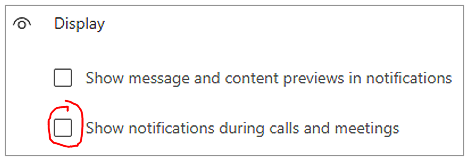
Specifically, you can "mute" notifications during meetings and calls so you're not interrupted. Within Teams, select Settings > Notifications and activity > under Display ensure that Show notifications during calls and meetings is unchecked.

Read More

Like to see a specific powertivity topic covered?

Send your suggestion to: itschange@fgcu.edu

Powertivity eNews archive

Need to Report an Issue or Have a Question?

Contact the University Help Desk:


helpdesk@fgcu.edu or 239.590.1188


Be your own help desk, click to visit the Knowledge Base

FGCU ITS Logo image

Empowering the University Community to achieve new digital possibilities