One Cool Tip Newsletter

July 28, 2024

Your daily dose of tech-savvy brilliance!

😀Hello Rodger, Happy Sunday, Cool Tipper!


Get ready to streamline your digital life with simple, actionable tips delivered straight to your inbox.


IN THIS ISSUE


  • 🌟 Tech-Savvy Brilliance: Your daily dose of simple, actionable tech tips.


  • 🐠 Google Drive Auto Captions
  • 🔒 Lock Google Drive Files
  • 🧠 Summarize Videos in Edge
  • 🧹 Free Up Google Drive Space
  • ⌨️ YouTube Keyboard Shortcuts


  • 😂 Laugh with Us! Enjoy our Tech Joke of the Day and Cool Tip Comics.


  • 🌐 Stay Informed! Check out Cool News, ICYMI, and our One Cool Tip Video.


New here? Subscribe to the One Cool Tip Newsletter for daily updates. It's FREE!


🔔 Is your email provider (Gmail, YAHOO, Outlook...) not delivering the newsletter? 


Check the Junk folder - Move the newsletter to your Inbox. And reply to this email with a “Hey, Rodger” or “I got it.” That tells your mail service you want this newsletter!


Today's Tech Trivia


Which of the following is the original name of YouTube?


A) Tune In Hook Up

B) VideoTube

C) FilmSplice

D) ShareYourWorld


Answer at end.

3️⃣

If you enjoy the One Cool Tip newsletter, please forward this newsletter to THREE friends or colleagues or share it on social media using the links below.


Share this One Cool Tip Newsletter!

X Share This Email
LinkedIn Share This Email
Pinterest Share This Email


Cool Thoughts

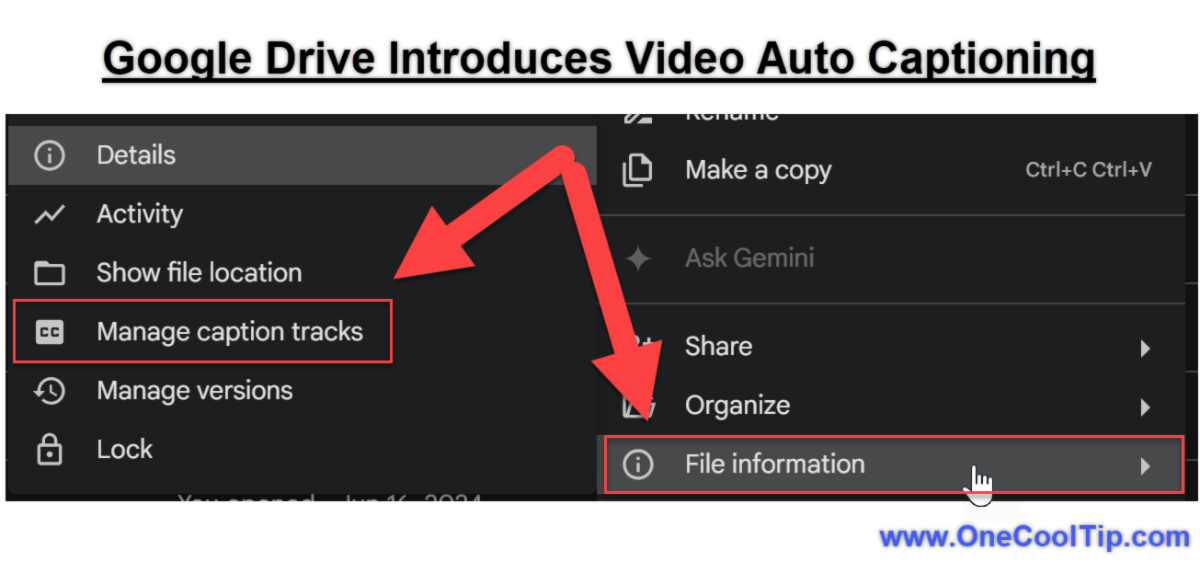
🐠Today's One Cool Tip Shows How to Use Google Drive's New Video Auto Captioning


Google Drive now adds captions to uploaded videos, boosting accessibility and engagement.


Learn how to use and manage this feature for a seamless viewing experience.


Read the full Cool Tip HERE.


🆒Collaborate Effectively in Google Drive


Share files and folders easily by clicking the "Share" button or simply pressing "." when a file is selected.


You can control permissions, allow comments, and even use @ mentions to notify collaborators.


✅ Let's Check Out Tech Tips You Can't Miss.


👀 Do You Want to Learn How to Lock Google Drive Documents?


Do you have any sensitive or important files in Google Drive that you don't want anyone else to edit or delete?


Lock any file in Google Drive so that only you can make changes to it. 


Here's how to do it.


  1. Open the Google Drive website, https://drive.google.com/drive/
  2. Go to the file that you want to lock.
  3. Right-click on the file.
  4. Select File information.
  5. Under the Permissions section, click on the Lock button.
  6. Confirm that you want to lock the file by clicking on the Lock button again.
  7. Once a file is locked, no one else will be able to make any changes to it, even if they have edit access. 
  8. To unlock a file, simply follow the same steps above and click on the Unlock button.


The Google Drive lock file feature is a great way to protect your files from unauthorized access and accidental changes. By following the steps above, you can learn how to use this feature and keep your files safe.


Read more HERE.


🤔 Have You Ever Wondered How to Summarize a Video in Microsoft Edge?


Have you ever found yourself overwhelmed by the sheer volume of information available online? 


Microsoft Edge, known for its security and speed, now teams up with Copilot, an AI that simplifies your digital life


Working together, they can create a summary of a video.


Here's how to do it.


  1. Open Microsoft Edge and navigate to the video you want to summarize.
  2. Click on the Copilot icon in the browser’s sidebar.
  3. Choose the ‘Chat’ option from the sidebar.
  4. Type “summarize this video” into the chat box.
  5. Copilot analyzes the video content and provides a concise summary.


Read more HERE.


🙋‍♂️ Use This Cool Tip to Free Up Storage Space in Google Drive


Are you running out of storage space in your Google Drive? 


To avoid paying Google for extra storage space, you can clean up large files you no longer need.


Here's how to identify the files that are taking up the most space, so you can delete them or move them to another storage location:


  1. Go to your Google Drive.
  2. Click the Storage button in the left-hand column.
  3. Google Drive will display a list of all your files, sorted by size, largest first.
  4. You can now delete or move the large files that you no longer need.


Read more HERE.


❓Did you share this newsletter with three friends yet?


⌨️Today's Cool Keyboard Shortcuts - YouTube


Space Bar  Play / Pause


J   Jump back 10 seconds.

K  Play / Pause

L  Jump forward 10 seconds

M  Mute audio

<--    --> (left/right arrow keys) rewind and fast forward

Home  Go to beginning

End  Go to end


0  Jump to beginning of the video

1  Jump to 10% of the video

2  Jump to 20% of the video

3  Jump to 30% of the video

4  Jump to 40% of the video

5  Jump to 50% of the video

6  Jump to 60% of the video

7  Jump to 70% of the video

8  Jump to 80% of the video

9  Jump to 90% of the video


Try these out the next time you are watching YouTube. Hint: You'll need to mouse click into the video at least once to ensure the shortcuts can affect the video playback.


Read more HERE.


✍️Today's Haiku


Silent words appear,

A bridge for unheard voices,

Meaning takes new form.


🔎 Do you have a Cool Tip or question? Email us at onecooltip.com@gmail.com


😜 Tech Joke of the Day😅


What did the video say to the slow internet connection?


"Hurry up, I can't wait to see my likes!"


Today's Cool Tip

Google Drive's Game-Changer: Auto Captions for Effortless Video Accessibility

Google Drive now automatically adds captions to uploaded videos, boosting accessibility and engagement. Learn how to use and manage this feature for a seamless viewing experience.

Read the One Cool Tip


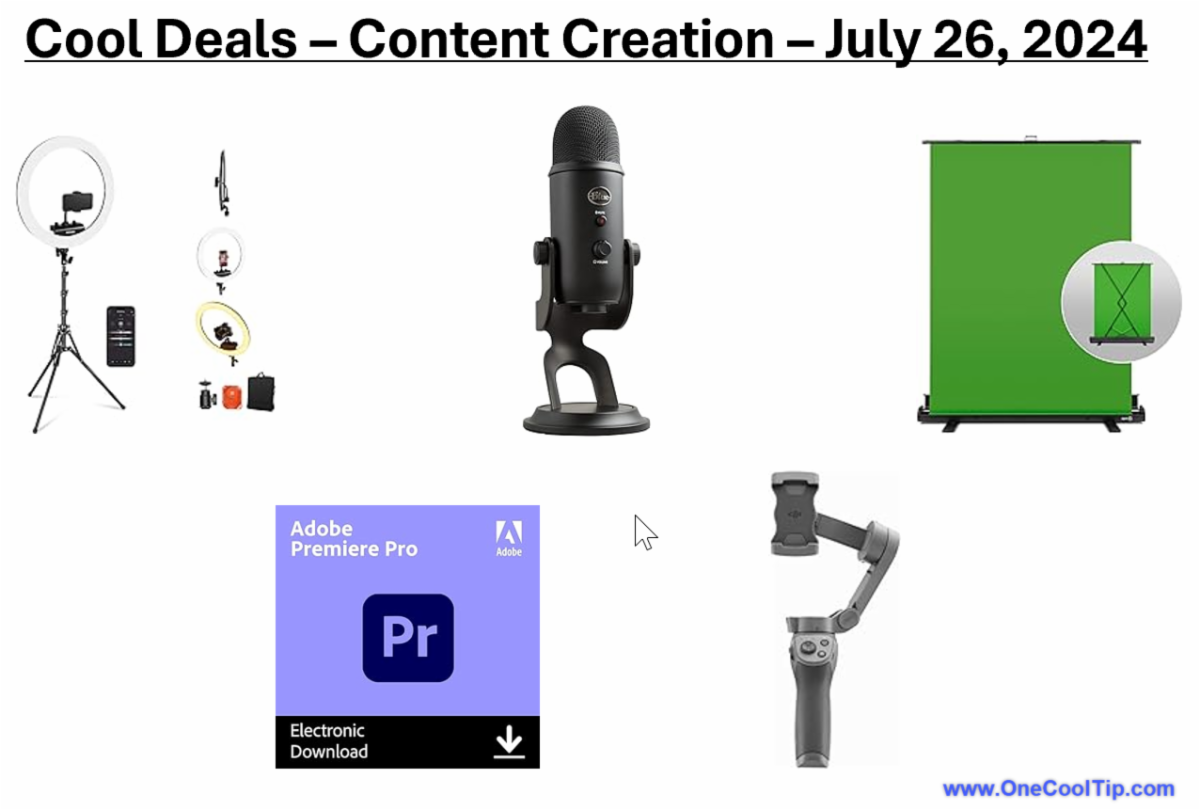
Cool Deals of the Day


🆒 Looking for new cool things?


📸 Lights, Camera, Action! Elevate your video quality with this ring light featuring adjustable brightness and color temperature.


Get that glow: Neewer Ring Light Kit $118.57


🎤 Crystal Clear Audio: Capture crisp, professional sound for your videos and podcasts with this condenser microphone.


Be heard: Blue Yeti USB Microphone $99.99


🖼️ Content Creation Companion: This portable green screen is perfect for creating unique backgrounds and effects.


Unleash your creativity: Elgato Green Screen $159.99


💻 Edit Like a Pro: Transform your videos with this powerful and user-friendly video editing software.


Craft your masterpiece: Adobe Premiere Pro $263.88


📱 Steady Shots: Capture smooth, cinematic footage with this versatile smartphone gimbal stabilizer.


Film like a pro: DJI Osmo Mobile 3 $89


Cool Tip Pulse

What's your biggest challenge when creating content for social media?
Coming up with fresh ideas
Finding time to create content
Getting engagement from my audience
Staying on top of trends and algorithm changes
Editing and polishing content to look professional


Fuel Your Adventure

Try Big Mike's Jerky! - bigmikesjerky.com


Cool News Around the Web

Check out these news links:


Did You See These Cool Tips This Week?

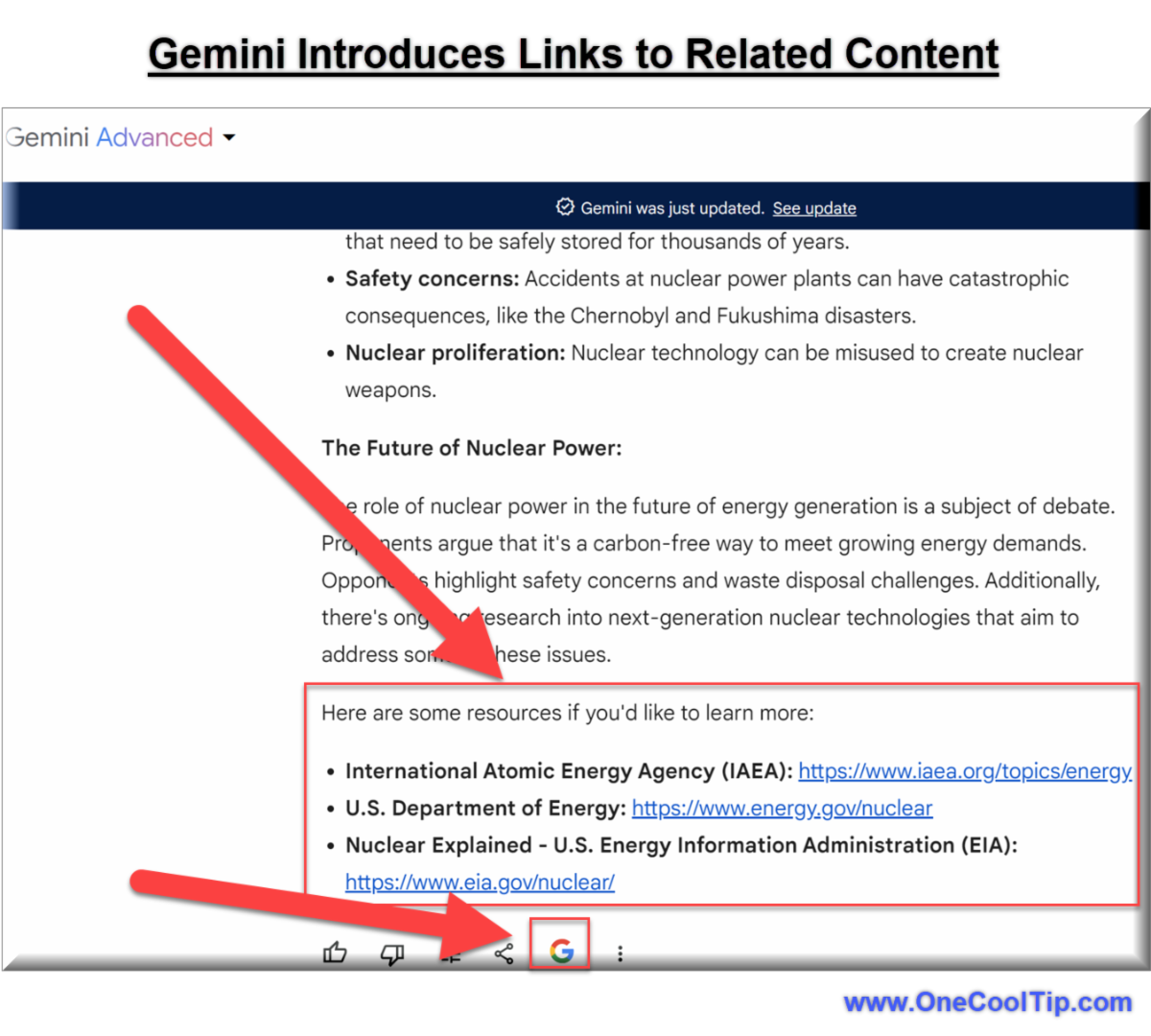
Gemini Introduces Links to Related Content

Gemini is redefining the way we interact with information. And now it displays links to related content. This reduces "hallucinations" and makes it easier to explore websites to learn more.

Read the One Cool Tip

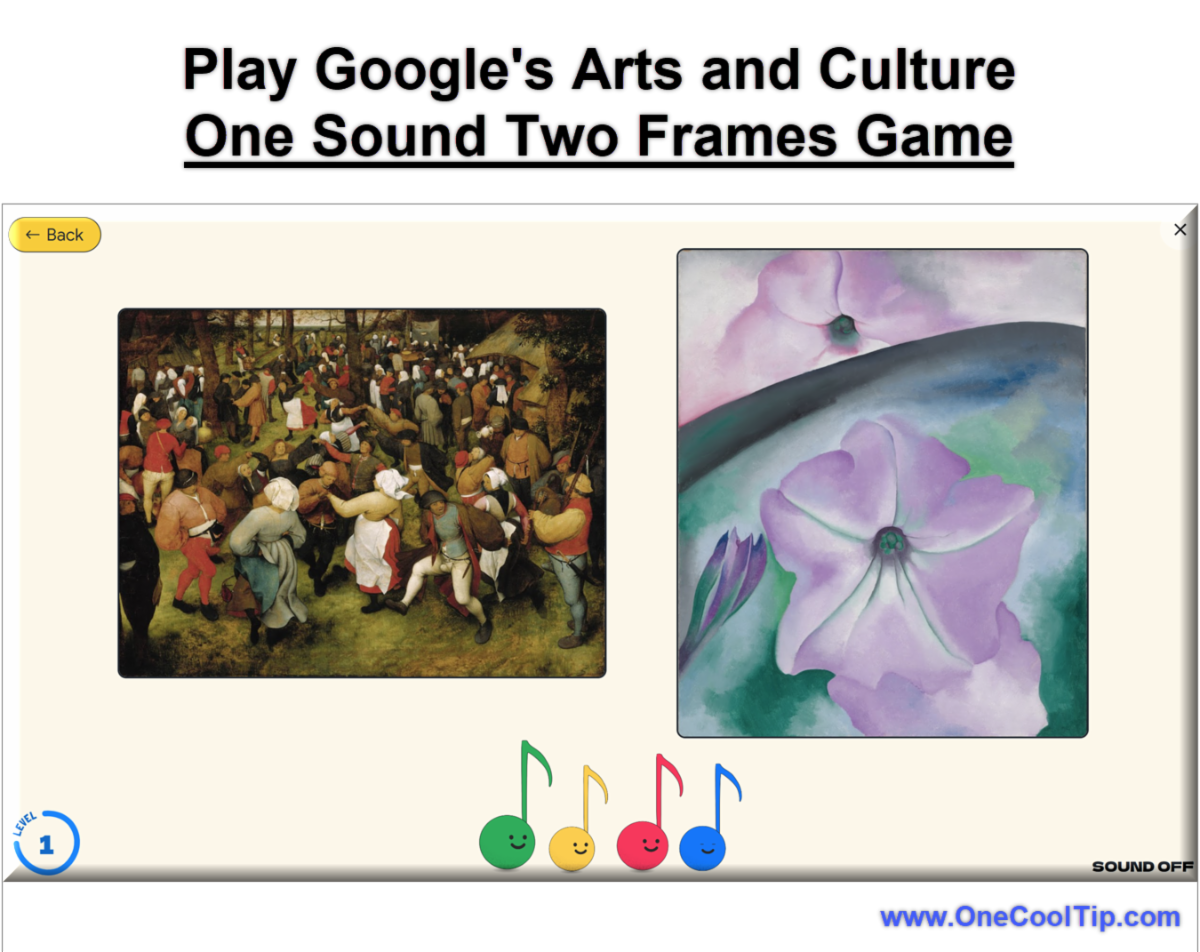
One Sound, Two Frames: Google's AI-Powered Art Game Harmonizes Sight and Sound

Google Arts & Culture's new game, "One Sound Two Frames," challenges your artistic instincts as you match AI-generated music with the artwork that inspired it. Explore the fusion of art and technology in this innovative and engaging experience.

Read the One Cool Tip


Find Your Adventure

Looking for your next adventure?


Call Denise at Travel For You.

314.660.3039


http://www.travelforyouvacations.com/


https://www.facebook.com/TRAVEL.FOR.U/


One Cool Tip Favorite Thing

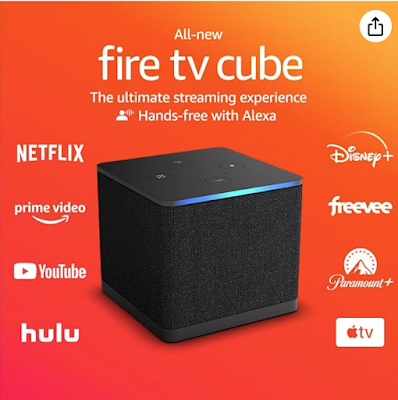
Upgrade Your Entertainment with Amazon Fire TV

Cut the cord and level up your streaming game! 


Amazon Fire TV puts all your favorite subscription apps and shows in one place. 


Enjoy lightning-fast access to Netflix, Prime Video, Disney+, and more. Alexa voice control makes finding what you want a breeze. 


Say goodbye to frustrating menus and hello to endless entertainment. 


Grab this deal now and transform your TV time!


Buy Now: https://amzn.to/3Y7p116

Check Out These Cool Things!


ICYMI - In Case You Missed It ...

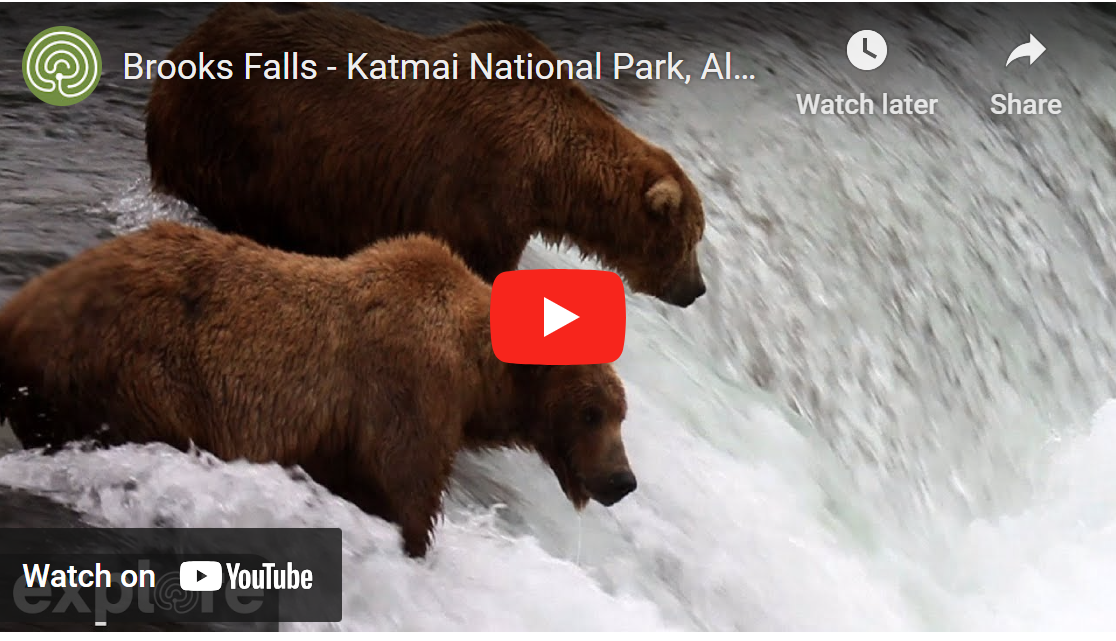
Witness the Wild: Katmai's Brooks Falls Webcam Offers Front-Row Seat to Nature's Drama

Katmai National Park's Brooks Falls webcam provides an unparalleled opportunity to witness brown bears fishing for salmon in their natural habitat. Join the live stream and be captivated by the raw power and beauty of Alaska's wildlife.

Read the One Cool Tip


One Cool Tip Video

Unleash the Power of Online Videos in Microsoft Word


Have you ever wanted to make your Microsoft Word documents more engaging and interactive? 


Are you tired of sending just links to videos in your documents? 


Watch


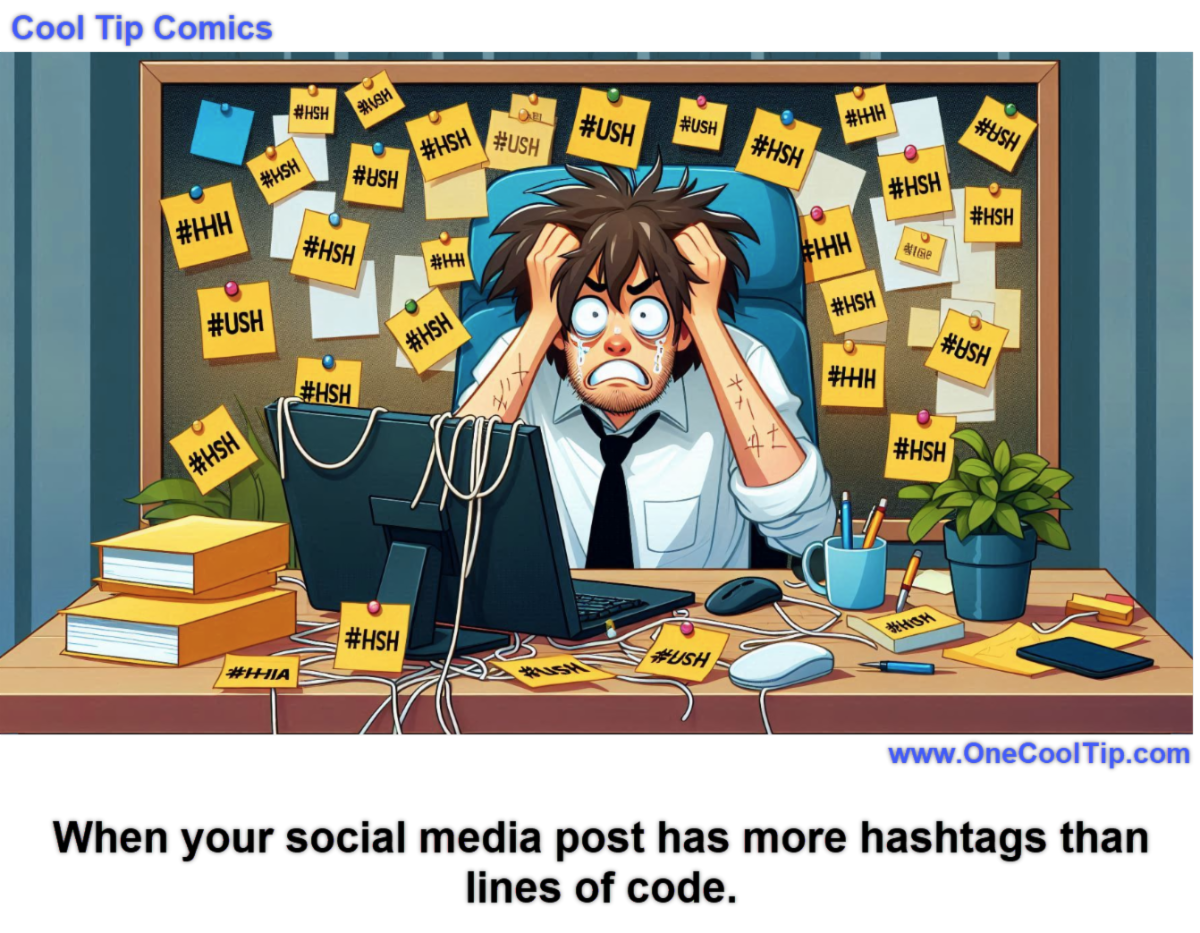
Cool Tip Comics

lol. Social media just LOOKS easy!


See You Tomorrow

Answer: A) Tune In Hook Up


YouTube was initially launched on Valentine's Day in 2005 under the name "Tune In Hook Up." The founders, Steve Chen, Chad Hurley, and Jawed Karim, envisioned it as a video-dating platform where users could upload videos introducing themselves and seeking potential partners. However, the site failed to gain traction in its original form, and the founders pivoted to a more open-ended platform for sharing videos of any kind.


This change in direction proved successful, and YouTube quickly grew into the world's largest video-sharing platform. Though the name "Tune In Hook Up" might seem humorous and dated today, it reflects the early experimentation and evolution that ultimately led to YouTube's massive success.


Tomorrow's Cool Tip is waiting to amaze you.


Until then, go forth and conquer the tech world with your newfound knowledge!


And be sure to visit www.OneCoolTip.com for Cool Tech Tips for a Cooler Life!


Enjoy!


Rodger

Chief Cool Tipper

onecooltip.com@gmail.com


What Do You Think?

What do you think of today's OneCoolTip newsletter?
Great
OK
Terrible

Please Share the One Cool Tip Newsletter!


You asked for it. You got it. There is now a One Cool Tip Newsletter archive. Did you delete a newsletter and want to read it again? Check it out HERE.


Want to help One Cool Tip grow? Please forward this email using the link above. And if you see an OCT social media post, please LIKE, COMMENT and SHARE!


Have you subscribed to the One Cool Tip YouTube channel? Subscribe HERE.

X Share This Email
LinkedIn Share This Email

Connect with One Cool Tip!!

Facebook  X  Instagram  Web  Pinterest  YouTube  LinkedIn

As an Amazon Associate, One Cool Tip may earn a small commission from qualifying purchases.


Our media content is intended solely for informational purposes only. Please do not construe anything here as legal, tax, investment, financial, marital or other advice.


Copyright © 2024 | www.OneCoolTip.com | All Rights Reserved