|
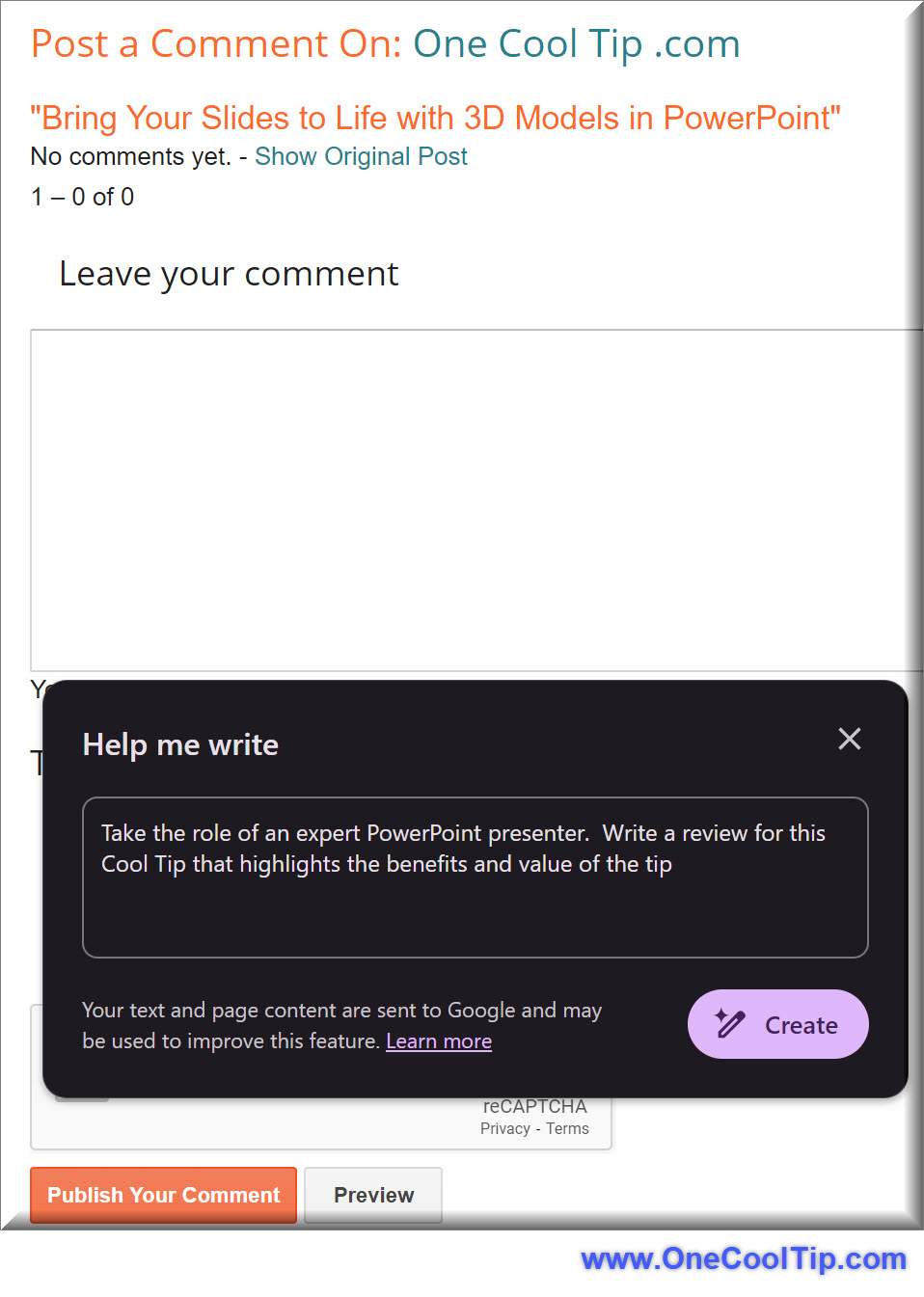
✍️ Today's One Cool Tip today shows how to use "Help Me Write" in Google Chrome. Read the full tip HERE!
Search Bar Tips:
-
Omnibox: Use the address bar (also known as the Omnibox) for both website addresses and search queries. This saves time and effort.
-
Tab to Search: If you start typing a website name and press Tab, Chrome will let you search that site directly from the Omnibox.
Navigation & Organization:
-
Keyboard Shortcuts: Learn essential shortcuts like Ctrl/Cmd+T (new tab), Ctrl/Cmd+W (close tab), and Ctrl/Cmd+Shift+T (reopen last closed tab) for faster navigation.
-
Bookmark Bar: Organize your most frequently visited websites on the Bookmark Bar for quick access.
-
Bookmark Folders: Create folders to categorize your bookmarks for better organization.
-
Tab Groups: Group related tabs together for better management of multiple open tabs.
-
Vertical Tabs: If you prefer a vertical tab layout, enable this feature in Chrome's settings.
Search Efficiency:
-
Search Operators: Use advanced search operators like "site:example.com" to search within a specific website or "filetype:pdf" to find specific file types.
-
Quotation Marks: Use quotation marks around a phrase to search for exact matches.
-
Minus Sign: Exclude specific words or phrases from your search results by using the minus sign (-).
✅ Let's check out some more Cool Chrome Tips.
📖 Start your day right with your favorite website. Set the startup page in Chrome. Hint, try www.OneCoolTip.com !
Here's how to do it.
-
Open Chrome
- Open tabs for each page you want to open on startup.
- Arrange tabs in order by dragging them into the correct order.
-
Go to the three dot icon in the top right corner of Chrome
-
Select Settings
-
Select On Startup
-
Select Open a Specific Page or Set of Pages
🔐 Looking for a VPN? NordVPN offers a secure, fast, and reliable VPN service with a Chrome extension for enhanced online privacy. NordVPN Plus - 1 Year. $59.99
📂 Do you know you can use Chrome as a replacement for Windows File Explorer?
-
Type "c:/" (without the quotes) into the Google Chrome address bar
-
Press Enter.
-
This will open a window called "Index of C:," which is an index of all computer files found on your C drive.
-
From there, you can browse through the folders, much like using File Explorer or Finder.
-
Double click on the "Users" folder to find your login. Your files will be here in numerous folders, including OneDrive if you are using Office 365.
💾 Need to backup your data? This external SSD provides fast, reliable storage for Chrome users, ideal for backing up data and accessing files quickly. Samsung T7 Portable SSD. $114.98.
⬆️↗️➡️↘️Tired of giving or receiving vague webpage locations? "Scroll to the 3rd page and 4 paragraphs down"? Use Google Chrome's 'Copy Link to Highlight' feature.
-
Navigate to the webpage containing the text you want to share.
-
Highlight the specific sentence or portion of text with your cursor.
-
Right-click on the highlighted area.
-
Select the "Copy Link to Highlight" option from the context menu.
-
Paste this special link into emails, chats, or documents.
🖱️ Get the mouse you need to surf the web. The MX Master 3 is a high-precision wireless mouse with customizable buttons and smooth scrolling, perfect for enhancing productivity on Chrome. Logitech MX Master 3 $ 99.99.
✍️Today's Haiku brought to you by your 42 open Chrome tabs.
Tabs in vibrant hues,
Swiftly surfing the web wide,
Chromie leads the way.
🔎 Ask the new OneCoolTip ChatGPT Companion your computer questions. Free to register and use, no subscription required.
😜 Tech Joke of the Day😅
Why did the computer get cold after surfing the web?
It left its Windows open! 😁
|