|
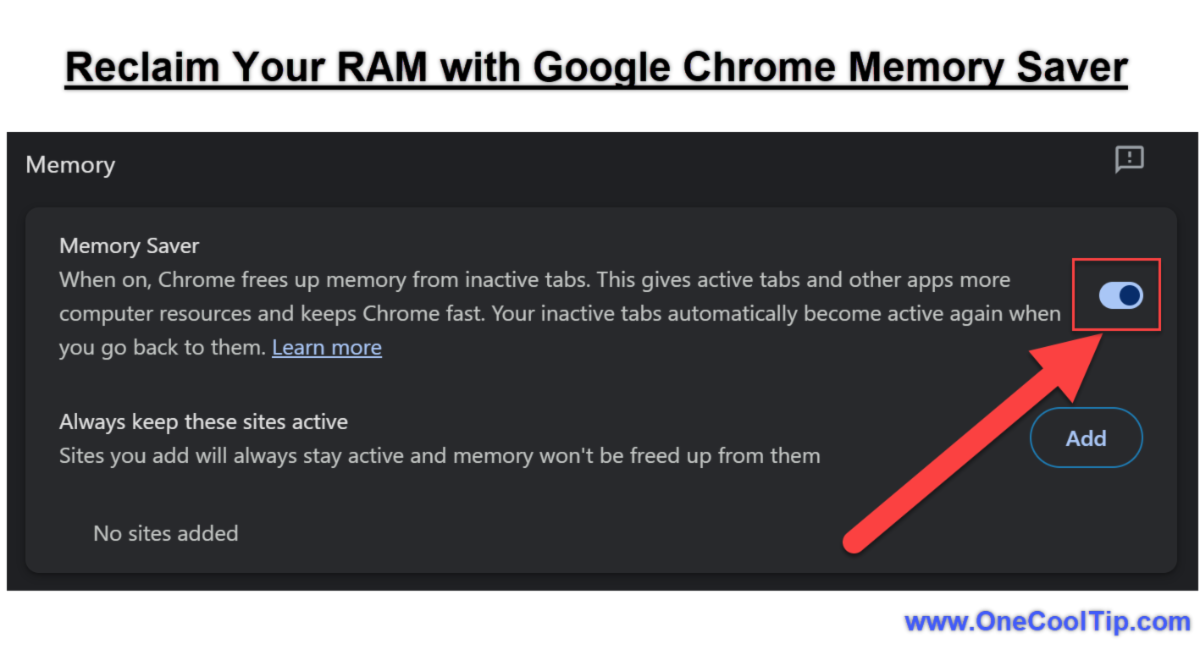
🐠Today's One Cool Tip Shows How to Tame the Google Chrome Memory Beast
Is Google Chrome slowing down your computer?
Discover how Memory Saver can supercharge your browsing experience by putting inactive tabs to sleep and freeing up precious system resources.
Read the full Cool Tip HERE.
✔️Are you still experiencing memory issues while using Chrome? Try these additional cool tips!
-
Enable Memory Saver (as discussed in today's Cool Tip): This is a major step towards reducing Chrome's RAM usage, especially if you tend to have a lot of inactive tabs open.
-
Close Unused Tabs: This may seem obvious, but each open tab consumes memory. If you're not actively using a tab, close it.
-
Manage Extensions: Disable Unnecessary Extensions: Extensions can be helpful, but they also use resources. Disable or remove any extensions you don't regularly use.
-
Check for Memory-Hungry Extensions: Some extensions are more demanding than others. Use Chrome's Task Manager (Shift+Esc) to identify which extensions are using the most memory and consider alternatives or disabling them if they're not essential.
-
Restart Chrome Regularly: Over time, Chrome can accumulate memory leaks. Restarting the browser periodically can help clear these out.
-
Update Chrome: Keep Chrome updated to the latest version. Updates often include performance improvements and bug fixes that can help with memory management.
-
Consider Hardware Upgrades: If you consistently run into memory issues, upgrading your computer's RAM can be a long-term solution.
-
Clear Cache and Cookies: While this doesn't directly free up RAM, clearing your cache and cookies can improve overall browser performance, which indirectly helps with memory usage.
-
Monitor Memory Usage: Use Chrome's Task Manager (Shift+Esc) to keep an eye on which tabs and extensions are using the most memory. This can help you identify which ones to close or manage.
Read more about the Google Chrome Task Manager HERE.
✅ Let's check out some more Cool Tips.
👀 Do You Want to Know How to Send a Link Between Devices?
Do you ever find yourself emailing links back and forth between your phone, laptop, or tablet?
Google Chrome's "Send to Your Devices" feature offers a convenient and intuitive solution, allowing you to effortlessly transfer web pages with just a few clicks.
Here's how to do it.
-
Ensure you're signed into the same Google Account on all the devices you want to use with this feature.
-
Navigate to the web page you wish to share.
- There are three ways to share a page:
-
Click the three dots in the top right corner of Chrome, then select "Save and Share" and "Send to your devices".
-
On a PC, right-click the page tab and select "Send to your devices".
-
On a mobile device, select the send icon (page with up arrow)to the right in the address bar, then select "Send to your devices".
-
Select the target device from the list.
-
A notification will appear on the chosen device. Tap it to open the shared page.
Read more HERE.
🤔 Have You Ever Wondered How to Set Enhanced Security in Google Chrome?
Are you concerned about your online security?
Enhanced Protection is the strongest level of Safe Browsing protection that Google Chrome offers.
It enables more advanced detection techniques that adapt quickly as malicious activity evolves.
This enhanced protection also protects users who use Google's email service, Gmail.
How to Set Up Google Chrome Enhanced Protection
-
Open Google Chrome.
-
Click the three dots in the top right corner of the browser window.
-
Select Settings.
-
Scroll down to the Privacy and Security section.
-
Select Security.
-
Under Safe Browsing select Enhanced protection.
Read more HERE.
🙋♂️ Use This Cool Tip to Restart Google Chrome.
Are you having problems with Google Chrome? Is it crashing, freezing, or not responding?
If so, here's a Cool Tip: force a restart of your browser.
This can often fix minor issues and improve performance.
Here's how to do it:
-
Open Google Chrome.
-
In the address bar, type chrome://restart
-
Press Enter.
-
Chrome will close and restart.
Force restarting Chrome is a quick and easy way to fix minor issues and improve performance.
Resetting Chrome settings will also clear temporary data such as cookies and cached files.
Read more HERE.
⌨️Today's Cool Keyboard Shortcuts - Google Chrome
Tabs & Windows:
-
Ctrl+T: Open a new tab
-
Ctrl+N: Open a new window
-
Ctrl+Shift+T: Reopen the last closed tab
-
Ctrl+W or Ctrl+F4: Close the current tab
-
Ctrl+Shift+N: Open a new window in incognito mode
-
Alt+Tab: Switch between open windows
-
Ctrl+Tab: Cycle through tabs to the right
-
Ctrl+Shift+Tab: Cycle through tabs to the left
-
Ctrl+1-8: Switch to a specific tab (1 is the leftmost tab)
Navigation:
-
Alt+Left Arrow or Backspace: Go back one page
-
Alt+Right Arrow or Shift+Backspace: Go forward one page
-
F5 or Ctrl+R: Refresh the current page
-
Ctrl+L or Alt+D: Jump to the address bar
-
Ctrl+F or F3: Find on page
-
Ctrl+H: Open history
-
Ctrl+J: Open downloads
-
Ctrl+D: Bookmark current page
-
Ctrl+Shift+Delete: Clear browsing data
Other Useful Shortcuts:
-
Ctrl+P: Print current page
-
Ctrl+S: Save current page
-
Ctrl+O: Open file
-
Ctrl+Plus (+) or Ctrl+Minus (-): Zoom in or out
-
Ctrl+0: Reset zoom to default
-
Spacebar: Scroll down a page
-
Shift+Spacebar: Scroll up a page
-
Esc: Stop loading page
Google has a complete list HERE.
✍️Today's Haiku
Tabs spread wide and far,
Memory hungers, then sleeps,
Saver brings relief.
🔎 Do you have a Cool Tip or question? Email us at onecooltip.com@gmail.com
😜 Tech Joke of the Day😅
Why do internet browsers make terrible friends?
Because they always bring up your history! 😅
|