|
One Cool Tip Newsletter
June 11, 2024
| Your daily dose of tech-savvy brilliance! | |
😀Hello Rodger, Happy Techno Tuesday, Cool Tippers!
Get ready to streamline your digital life with simple, actionable tips delivered straight to your inbox.
🍎 Apple's WWDC 2024 kicked off yesterday with a focus on several key areas:
-
New iPhone models: While details were not fully revealed, Apple hinted at upcoming iPhones with potential upgrades in camera technology, processing speed, and design.
-
iOS 18: The new iOS version was unveiled, promising improved multitasking capabilities, enhanced privacy controls, and deeper integration with smart home devices.
-
Smarter Siri: Apple showcased advancements in Siri's artificial intelligence, enabling more natural language interaction and better task completion.
While these were the major highlights, WWDC also featured updates on other Apple platforms like iPadOS, macOS, watchOS, and visionOS, as well as new tools and features for developers.
The biggest downer is that the improved Siri on iPhones is coming only to iPhone 15 Pro models. :-(
Did you catch the keynote at yesterday's WWDC? If not you can watch it HERE
Apple has a recap HERE.
IN THIS ISSUE
-
🌟 Tech-Savvy Brilliance: Your daily dose of simple, actionable tech tips.
- 🎨 Create Custom Stickers
- 💡 New to Microsoft Designer?
- 👩🎨 Chrome browser AI-generated art themes.
- 🅱️ "C" keyboard shortcuts.
- 🎨 Microsoft Paint's AI features in Windows 11.
-
😂 Laugh with Us! Enjoy our Tech Joke of the Day and Cool Tip Comics.
-
🌐 Stay Informed! Check out Cool News, ICYMI, and our One Cool Tip Video.
New here? Don't forget to Subscribe to the One Cool Tip Newsletter for daily updates.
🙋♂️ We need your help!
3️⃣ If you enjoy the One Cool Tip newsletter, please forward this newsletter to THREE friends or colleagues or share it on social media using the links below.
Spread the One Cool Tip love and help your friends level up their tech game!🥰
Today's Tech Trivia
Which of these films is considered a pioneer in the use of computer-generated imagery (CGI) for special effects?
A) Star Wars (1977)
B) Tron (1982)
C) Jurassic Park (1993)
D) Toy Story (1995)
Answer is at the end.
| |
Share this One Cool Tip Newsletter! | |
|
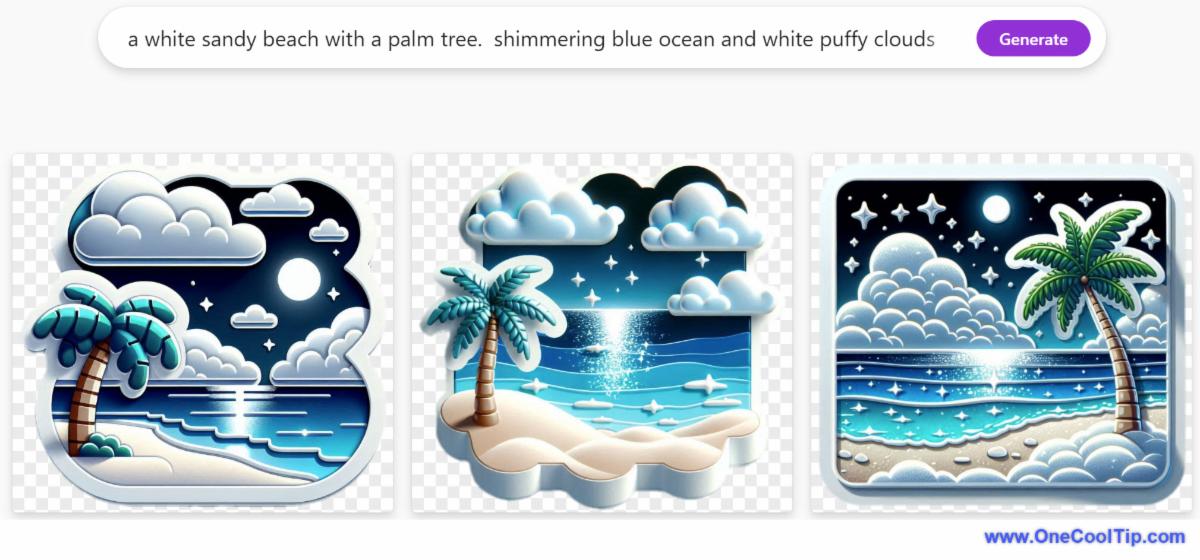
🎮Today's One Cool Tip shows how to create stickers using the Microsoft Designer tool. The Sticker Maker empowers your creativity. Read the full tip HERE!
➕New to Microsoft Designer?
Microsoft Designer is a graphic design app that helps you create professional-quality social media posts, invitations, digital postcards, graphics, and more.
Here's how to do it.
-
Visit Microsoft Designer, https://designer.microsoft.com/.
-
Sign in with your Microsoft account or create one for free.
- In the Description box, provide details about the sticker you want to create. Be specific! You can describe characters, themes, colors, or emotions.
Here are some tips to get the most out of it:
-
Background Blur and Removal: Use the background blur or removal feature to bring the most important elements into focus. This can enhance the visual impact of your designs.
-
Object Eraser: Remove unwanted objects from your images seamlessly. This tool helps you clean up your visuals and maintain a polished look.
-
Design Layout Suggestions: Get layout suggestions to transform your ideas. Sometimes a fresh perspective can lead to more creative designs.
-
Creative AI Copy Suggestions: Need the right words? Microsoft Designer offers AI-generated copy, captions, and hashtag suggestions to enhance your content.
✅ Let's check out some more Cool Tips.
👩🎨Do you want to customize your Chrome browser with AI art?
Google's new feature allows you to generate custom themes that are uniquely yours. Here's how to do it.
-
On your computer, open Chrome.
-
At the bottom right of a New Tab page, select "Customize Chrome".
-
Select "Change theme".
-
Select "Create with AI".
-
Under “Create theme with AI”:
-
Choose from a list of popular subjects.
-
Under “Add optional details”:
-
Select a style you prefer. The styles in the list have a thumbnail image to give you an insight on what they may look like.
-
Choose a mood from the list.
-
Choose a color from the options provided.
-
Select Create.
- A set of themes are generated by AI.
-
Select a theme to apply to the New Tab page.
🅱️Today is brought to you by the letter C. Try these cool "C" keyboard shortcuts
Windows OS:
Microsoft 365 Apps (Word, Excel, PowerPoint):
-
Ctrl + C: Also copies selected content within documents.
🎨 Did you know that Microsoft Paint is updated with AI in Windows 11?
Here’s how you to use it:
-
Open Microsoft Paint.
-
Select the Cocreator icon on the toolbar to see the Cocreator side panel.
-
In the text box, enter a description of the image you want to create. For example, you can type “a blue cat with a red hat” or “a landscape with mountains and a lake”. Be descriptive as possible to generate results matching your expectations.
- In my example, I used "view of the Grand Canyon from the south rim at sunset"
-
After you enter the text, choose a style in which you want to create your image and then select the Create button.
- In my example, I selected "Watercolor".
-
Cocreator will generate three different variants of the image you requested, you can click on any of the variants to apply that image to Paint canvas and start creating.
-
Select the image you want to use.
-
Edit and save your image.
Please note that to use Cocreator, you need to sign in with your Microsoft account.
💵 Looking to save $$$ for your Father's Day gift? Check out this sweet PROMO code at CVS to save 50% for photo gifts: 50SITE
🎁 Still looking for something for Dad? Or maybe you? Why not some cool art supplies? They make great gifts!
-
🖍️ Oil Pastel Set: These versatile oil pastels offer rich pigments and smooth blending capabilities, ideal for creating vibrant landscapes, portraits, and still life artwork. 👉 Buy Now: Pentel Arts Oil Pastels $6.94
✍️Today's Haiku brought to you by your middle school art teacher
Pixels dance and gleam,
Lines and colors intertwine,
Digital canvas.
🔎 Do you want to read more Cool Tips on AI? Find them HERE.
😜 Tech Joke of the Day😅
Why did the pixel refuse to go to art school?
Because it didn’t want to be a square! 😁
| | |
|
👀 Create Eye-Catching Stickers in Seconds with Microsoft Designer 🪄 | |
Learn how to use the Microsoft Designer Sticker Maker to create eye-catching custom stickers for social media, messaging apps, and more.
This powerful tool generates transparent background stickers based on your descriptions, allowing you to add flair to your content effortlessly.
| |
| What new feature in iOS18 is most interesting? | | | |
|
|
Cool News Around the Web
| | | |
Did You See These Cool Tips This Week?
| | |
|
Excel Hacks: Master Line Breaks and Bullets for Cleaner Spreadsheets | |
Learn how to add line breaks and bullets within Excel cells to make your spreadsheets more organized, readable, and professional.
This Cool Tip offers step-by-step instructions to elevate your Excel game.
| | |
|
ChatGPT's New Background Conversations: The Always-On AI Assistant? | |
OpenAI's ChatGPT has unveiled a game-changing feature – Background Conversations.
This allows users to engage in continuous voice chats with the AI, even while using other apps.
But is this always-on assistant a convenience or a privacy concern?
| |
One Cool Tip Favorite Thing
| | |
|
Say goodbye to bulky, clattering mice! | |
Upgrade your workspace with the sleek and silent Logitech Pebble Mouse 2 M350s.
Its smooth, organic shape feels fantastic in your hand, while Bluetooth connectivity lets you work wirelessly and clutter-free.
Plus, with its whisper-quiet clicks, you won't disturb anyone around you. Available in a range of chic colors to match your style.
Transform your workflow today – grab your Logitech Pebble Mouse 2 M350s now!
Buy Now: https://amzn.to/3yfWknJ
| |
ICYMI - In Case You Missed It ...
| | |
|
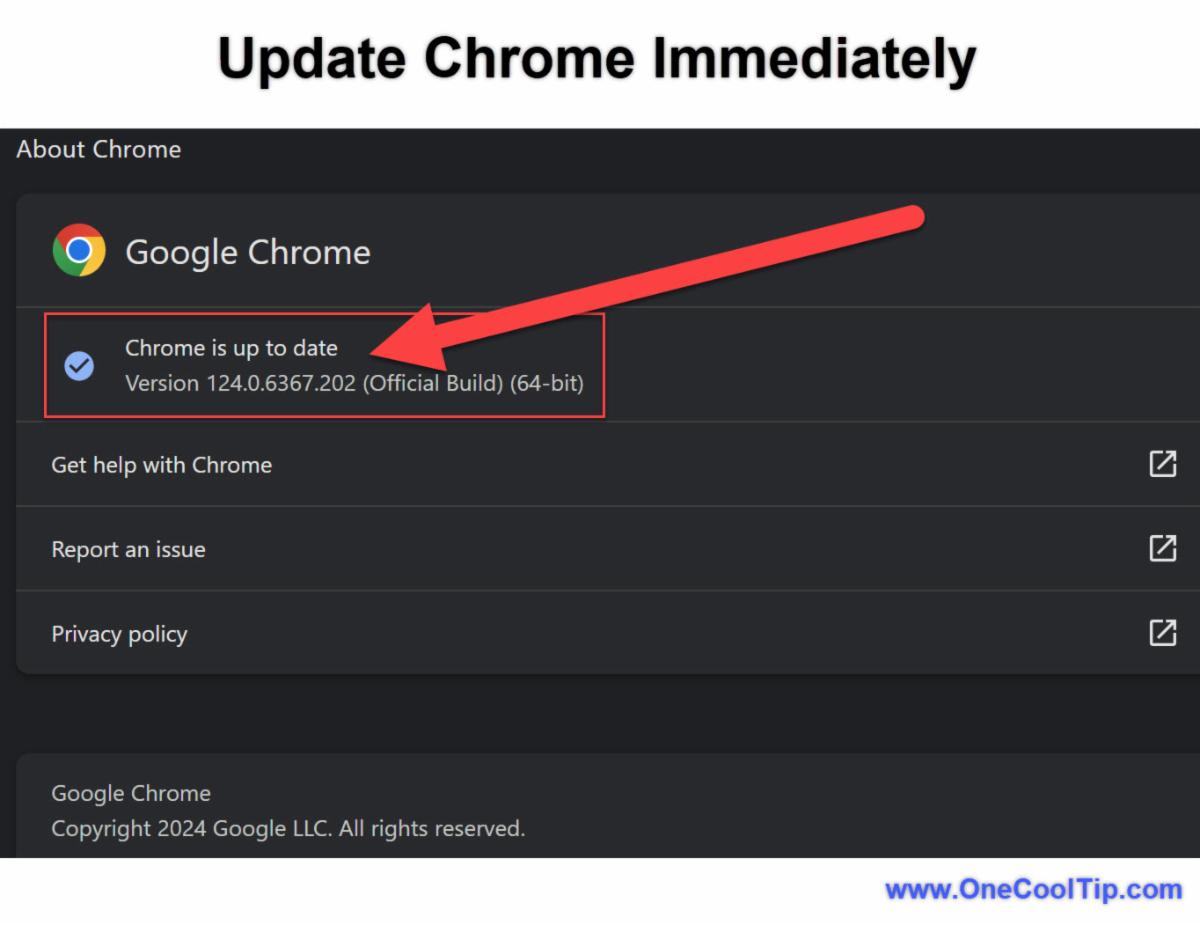
Urgent Chrome Security Alert: Update NOW to Patch Zero-Day Exploit (CVE-2024-4671) | |
Did you update your Google Chrome?
Google has released a critical security update for Chrome to address a zero-day vulnerability actively exploited by hackers.
| |
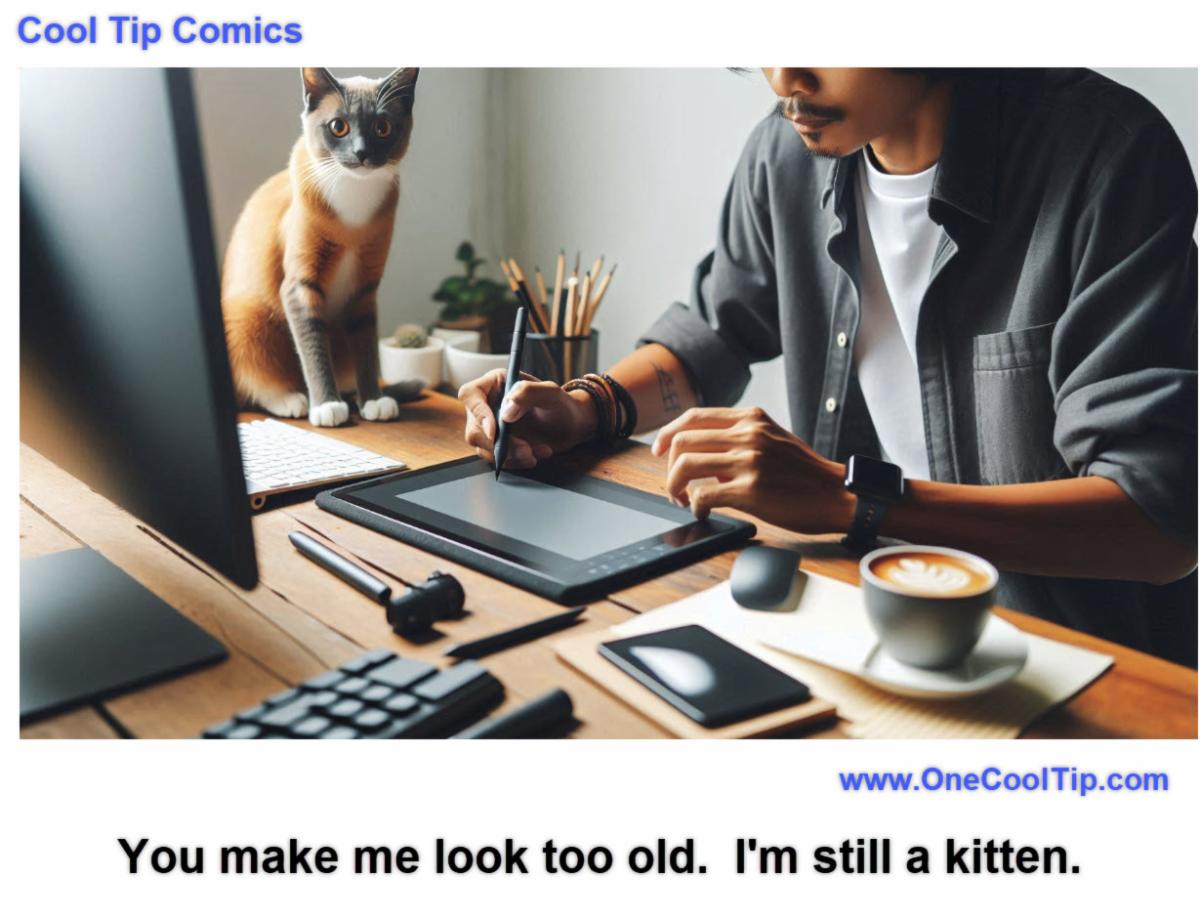
Everybody's an art critic. | |
|
Answer: B) Tron (1982) .
The 1982 film Tron is considered a pioneer in the use of computer-generated imagery (CGI) due to its groundbreaking advancements in digital effects.
The film featured approximately 15 minutes of fully computer-generated scenes, including the iconic Light Cycle sequence, which showcased the potential of CGI to create entirely new visual experiences.
Tron utilized early 3D CGI techniques to create landscapes, buildings, vehicles, and characters in the digital world, a major leap forward from the limited use of CGI in previous films.
By combining CGI with other techniques like backlighting and cel animation, Tron established a unique visual style that inspired a new generation of filmmakers to explore digital effects.
Its success paved the way for the widespread adoption of CGI in the film industry, demonstrating its potential to create stunning visuals and tell stories in innovative ways.
While the CGI in Tron may seem rudimentary today, its innovative use of digital effects set a new benchmark for visual storytelling and sparked a revolution in filmmaking.
That's all for today, but stay tuned!
Tomorrow's Cool Tip is waiting to amaze you.
Until then, go forth and conquer the tech world with your newfound knowledge!
And be sure to visit www.OneCoolTip.com for Cool Tech Tips for a Cooler Life!
Enjoy!
Rodger
Chief Cool Tipper
onecooltip.com@gmail.com
| |
| What do you think of today's OneCoolTip newsletter? | | | |
Please Share the One Cool Tip Newsletter!
You asked for it. You got it. There is now a One Cool Tip Newsletter archive. Did you delete a newsletter and want to read it again? Check it out HERE.
Want to help One Cool Tip grow? Please forward this email using the link above. And if you see a OCT social media post, please LIKE, COMMENT and SHARE!
Have you subscribed to the One Cool Tip YouTube channel? Subscribe HERE.
| |
Connect with One Cool Tip!! | | |
|
As an Amazon Associate, One Cool Tip may earn a small commission from qualifying purchases.
Our media content is intended solely for informational purposes only. Please do not construe anything here as legal, tax, investment, financial, marital or other advice.
Copyright © 2024 | www.OneCoolTip.com | All Rights Reserved
|
| | | |