|
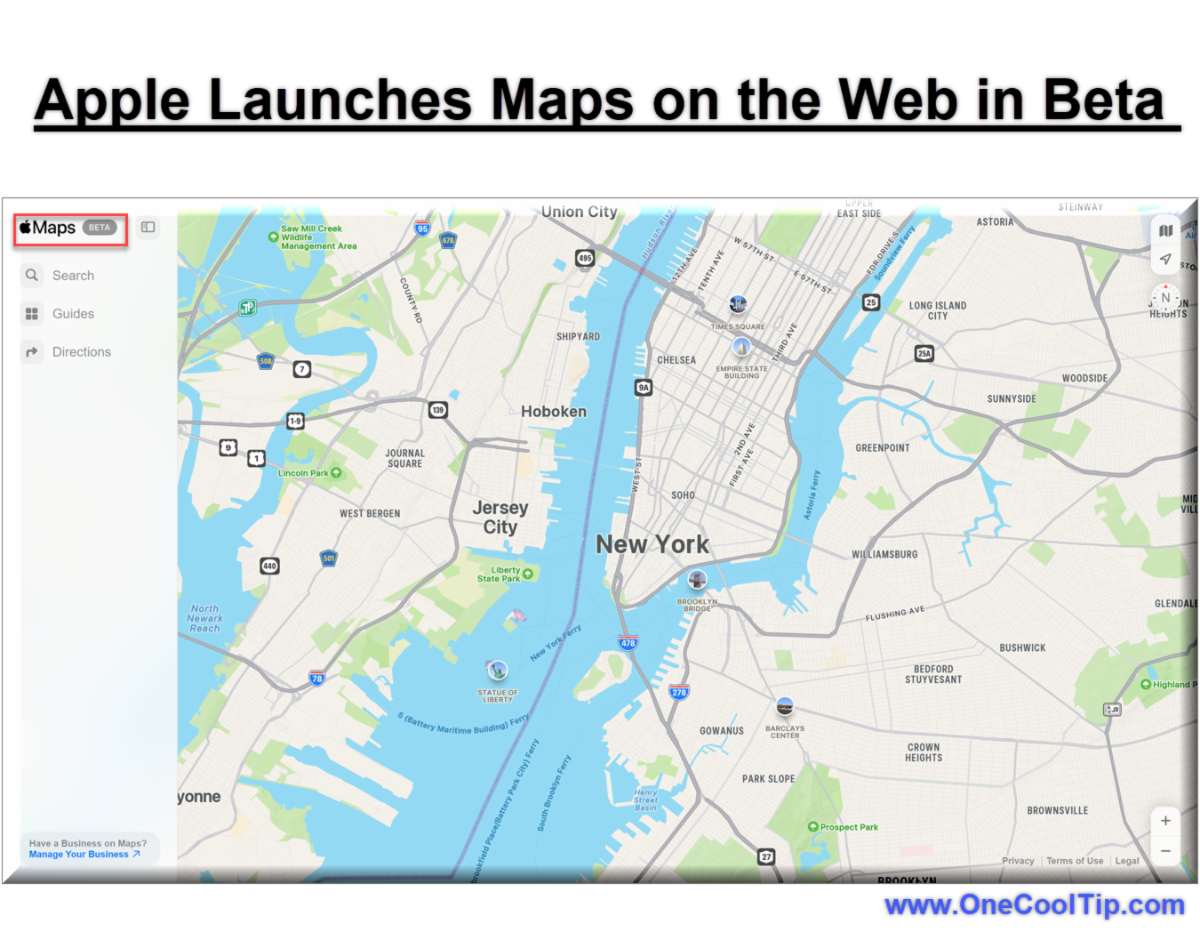
🐠Today's One Cool Tip Shows How to Use the New Apple Maps on the Web.
Apple has launched a public beta of Apple Maps on the web, marking a major move to compete with Google Maps.
Here's what you need to know about its features, how to access it, and its potential impact.
Read the full Cool Tip HERE.
🗺️Using a Map app to navigate? Check out these Cool Tips:
-
Download Offline Maps: If you'll be in an area with spotty service or traveling internationally, download maps for offline use. This ensures you can still get directions even without a data connection.
-
Explore Different Transportation Modes: Most apps offer directions for driving, walking, public transit, and sometimes even cycling or ride-sharing. Experiment to see which mode best suits your needs.
-
Customize Your Settings: Explore the app's settings to adjust voice guidance volume, units of measurement (miles vs. kilometers), preferred routes (fastest, shortest, avoiding tolls), and more.
-
Use Voice Commands: Many apps support voice commands for hands-free navigation. This is especially useful while driving.
-
Check for Updates: Keep your app updated to access the latest features, bug fixes, and map data.
✅ Let's check out some more Cool Tips.
👀 Do You Want to Know How to Use Waze on the Web?
Access real-time traffic updates, find gas stations, report hazards, and even earn points - all without draining your phone's battery or squinting at a tiny screen.
How to Navigate with Waze Web:
-
Head to: https://www.waze.com/ on your desktop or laptop.
- Allow location access.
- Waze needs to know where you are to show you relevant traffic and directions.
-
Enter your destination and choose your preferred route.
- Waze on the Web shows real-time traffic conditions so you can avoid jams and choose the fastest path.
-
See live traffic updates, accidents, police traps, and even gas prices along your route.
-
Report hazards, accidents, and road closures to help other drivers on the road.
-
Save your driving route instructions to your mobile phone Waze app by selecting the "Save to app" button.
The Best of Both Worlds!
Read more HERE.
🤔 Have You Ever Wondered How to Use Siri to Find Your Parked Car?
Simply say "Hey Siri, I parked my car," and your trusty iPhone will keep tabs on your vehicle's location.
This handy feature can alleviate parking anxiety and save you precious time.
Here's how to do it.
Before you can use this feature, you need to ensure a few settings are in place:
-
Go to Settings > Privacy & Security> Location Services. Toggle Location Services on.
-
In the same Location Services menu, scroll down, tap System Services, and ensure Significant Locations is toggled on.
-
Open Settings > Maps. Toggle on the Show Parked Location setting.
Once your settings are ready, follow these steps:
-
Park your vehicle.
-
Let Siri know: Say, "Hey Siri, I parked my car."
-
Siri will mark your location on Maps.
When you're ready to return to your car, you can ask Siri "Where did I park?"
Read more HERE.
🙋♂️ Use This Cool Tip to Play the Google Maps Snake Game.
Do you like Google Maps?
Play the Google Maps Snake Game.
It's a fun way to pass the time while you're waiting for directions or just exploring a new city.
To play the Google Maps Snake game, follow these steps:
-
Open Google Maps Snake at https://snake.googlemaps.com/
-
Click Start.
-
Select a City,
- Read the game instructions.
-
Select Got It.
- Control the snake by using the arrow keys on your keyboard or by swiping on your mobile device.
- The goal is to eat as many food items as possible without hitting yourself or the walls.
Read more HERE.
⌨️Today's Cool Keyboard Shortcuts
Here are some popular keyboard shortcuts for Google Maps (https://www.google.com/maps):
Navigation
-
Arrow keys: Pan the map up, down, left, or right.
-
+ and - keys: Zoom in and out.
-
Shift + arrow keys: Pan the map in larger increments.
Other Actions
-
Ctrl + Shift + I (or Cmd + Shift + I on Mac): Show your current location.
-
Ctrl + Shift + H (or Cmd + Shift + H on Mac): Get help and see a list of all keyboard shortcuts.
-
Ctrl + Shift + F (or Cmd + Shift + F on Mac): Send feedback to Google about Maps.
-
Ctrl + Shift + E (or Cmd + Shift + E on Mac): Share or embed the current map.
Additional Tips
- To access a full list of keyboard shortcuts directly within Google Maps, press Ctrl + / (or Cmd + / on Mac).
- You can use your scroll wheel to zoom in and out on the map.
- If you're using Google Maps in Street View, use the arrow keys to move around and look in different directions.
Read more about Accessibility in Google Maps HERE.
✍️Today's Haiku
Digital guide unfolds,
Roads twist, cities bloom on screen,
Lost? Just tap, and find.
🔎 Do you have a Cool Tip or question? Email us at onecooltip.com@gmail.com
😜 Tech Joke of the Day😅
A map app is like a backseat driver, except it's always right... and it never offers to chip in for gas...😅
|